devops
Creating an EC2 Instance
Step-by-step: launch an EC2 instance, connect via SSH, and set up a basic web server
Prerequisites
- AWS account (free tier works fine)
- AWS CLI configured (
aws configure) - A terminal with SSH
Method 1: AWS Console (GUI)
Step 1 — Open the EC2 Dashboard
Go to AWS Console → Services → EC2 → Launch Instance
Step 2 — Name your instance
Give it a name, e.g. my-first-server
Step 3 — Choose an AMI
Select Amazon Linux 2023 (free tier eligible, modern, fast)
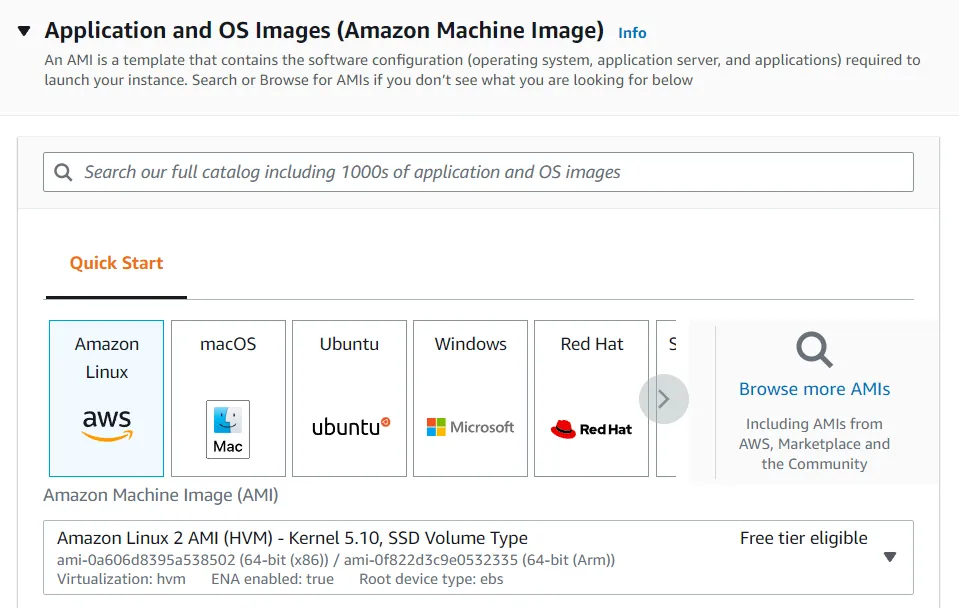
Step 4 — Choose instance type
Select t2.micro or t3.micro — free tier eligible
Step 5 — Key Pair
- Click Create new key pair
- Name:
my-keypair - Type: RSA, format:
.pem - Download it — you cannot download it again!
- Move it somewhere safe:
mv ~/Downloads/my-keypair.pem ~/.ssh/ - Lock the permissions:
chmod 400 ~/.ssh/my-keypair.pem
Step 6 — Security Group
Create a new security group. Add these inbound rules:
| Type | Port | Source |
|---|---|---|
| SSH | 22 | My IP (select from dropdown) |
| HTTP | 80 | Anywhere (0.0.0.0/0) |
Step 7 — Storage
Keep the default 8 GiB gp3 root volume (free tier: up to 30 GiB)
Step 8 — Launch!
Click Launch Instance. After ~30 seconds, state changes to Running.
Method 2: AWS CLI
# Find the latest Amazon Linux 2023 AMI ID in your regionaws ec2 describe-images \  --owners amazon \  --filters "Name=name,Values=al2023-ami-*-x86_64" \  --query "sort_by(Images, &CreationDate)[-1].ImageId" \  --output text
# Launch instance (replace ami-xxxxxxxx with the ID above)aws ec2 run-instances \  --image-id ami-xxxxxxxx \  --instance-type t3.micro \  --key-name my-keypair \  --security-group-ids sg-xxxxxxxx \  --subnet-id subnet-xxxxxxxx \  --count 1 \  --tag-specifications 'ResourceType=instance,Tags=[{Key=Name,Value=my-first-server}]'
# Get the public IP of your running instanceaws ec2 describe-instances \  --filters "Name=tag:Name,Values=my-first-server" \  --query "Reservations[0].Instances[0].PublicIpAddress" \  --output text
Connecting via SSH
# Linux / macOSssh -i ~/.ssh/my-keypair.pem ec2-user@<PUBLIC_IP>
# Windows (PowerShell — native OpenSSH)ssh -i C:\Users\you\.ssh\my-keypair.pem ec2-user@<PUBLIC_IP>
Default usernames by AMI:
- Amazon Linux →
ec2-user- Ubuntu →
ubuntu- Debian →
admin- CentOS →
centos
Quick Setup: Install a Web Server
Once SSH’d in:
# Update packagessudo dnf update -y
# Install nginxsudo dnf install -y nginx
# Start and enable on bootsudo systemctl start nginxsudo systemctl enable nginx
# Check statussudo systemctl status nginx
Now visit http://<PUBLIC_IP> in your browser — you should see the nginx welcome page.
Stopping vs Terminating
# Stop (instance off, data kept, small EBS cost continues)aws ec2 stop-instances --instance-ids i-xxxxxxxxxxxxxxxxx
# Start againaws ec2 start-instances --instance-ids i-xxxxxxxxxxxxxxxxx
# Terminate (instance + root volume deleted — gone forever)aws ec2 terminate-instances --instance-ids i-xxxxxxxxxxxxxxxxx
Free tier tip: Stop instances when not in use. Terminate them when done to avoid any charges.
Common Issues
| Problem | Cause | Fix |
|---|---|---|
Permission denied (publickey) | Wrong key or wrong user | Check -i path and username |
Connection timed out | Port 22 not open | Check security group inbound rules |
UNPROTECTED PRIVATE KEY | .pem permissions too open | chmod 400 ~/.ssh/my-keypair.pem |
| Can’t reach port 80 | HTTP not in security group | Add inbound rule for port 80 |